Quickstart
Literaxis Studio — ready to write in 5 minutes
Literaxis Studio is intuitive — most of it becomes clear as you write. This page only covers what isn't immediately obvious at the start.
1
Creating a new book
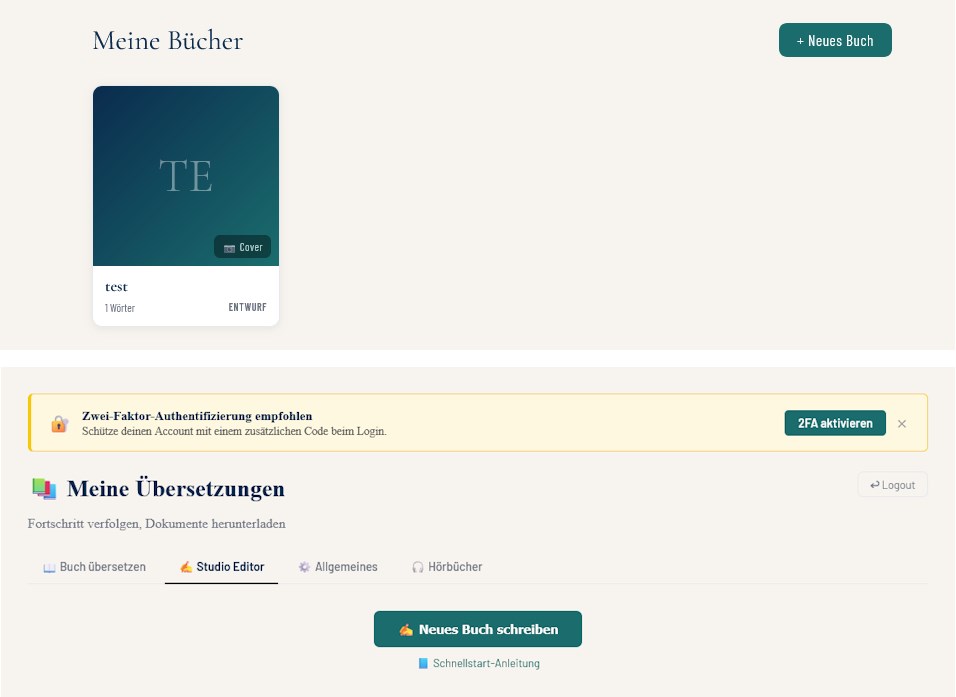
Two ways: via the dashboard "My books" → "+ New book" (or "Create first book" on an empty account), or directly via "Studio" in the top navigation — the same setup screen appears automatically if you have no books yet.
2
Editor overview
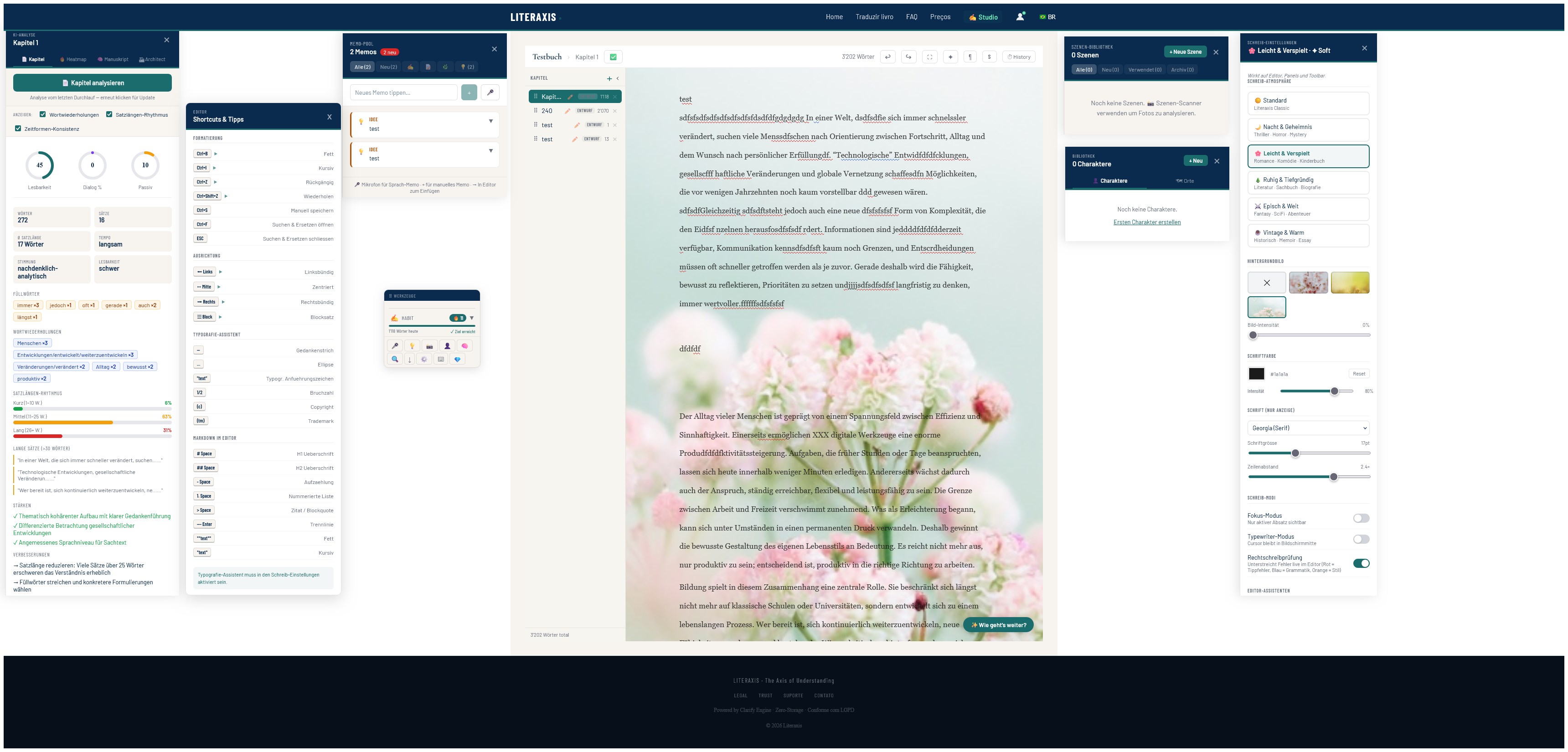
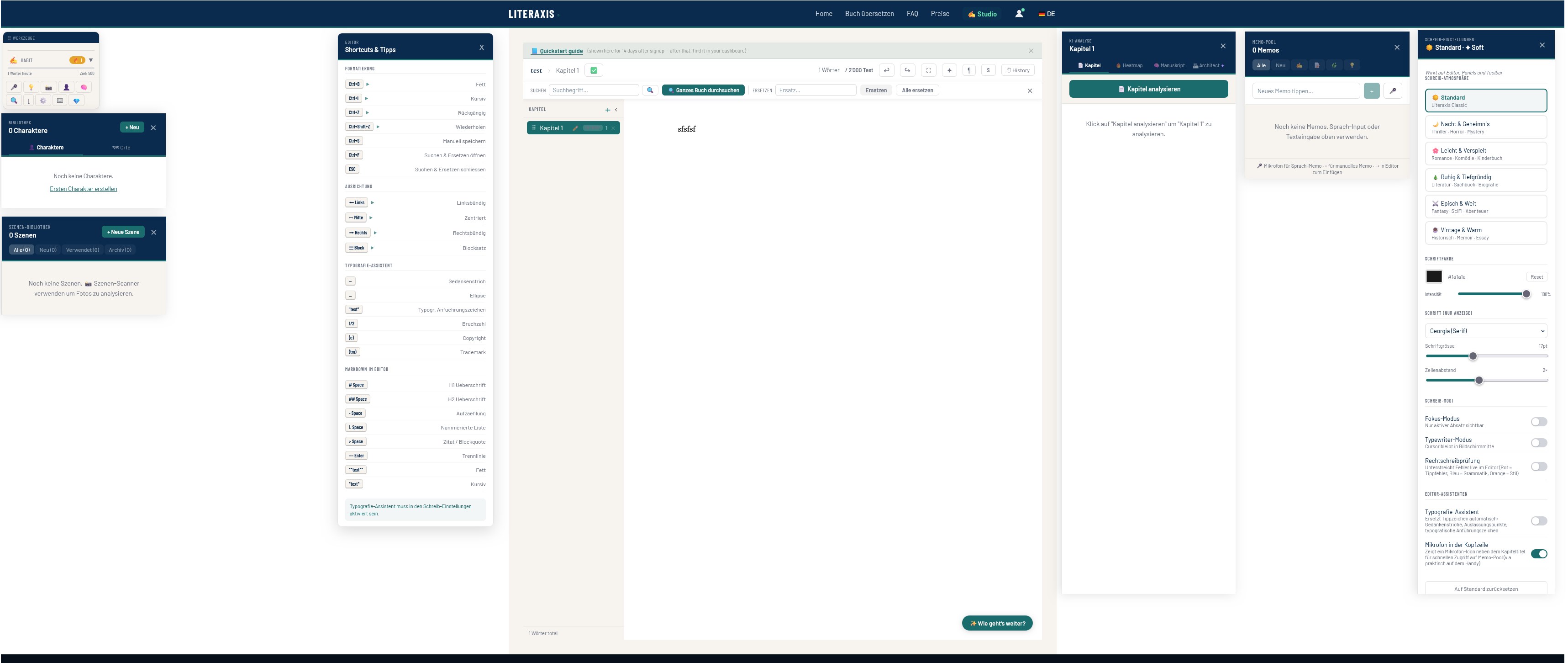
The editor is split into: chapter list on the left, writing area in the middle, expandable panels on the right (writing settings, scene library, etc.), and the freely placeable "Tools" window.
3
Habits & Toolbox
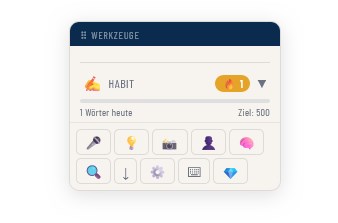
Habits: set a daily word-count goal, track progress live, weekly progress chart.
Toolbox (the central tool) — access point for:
- 🎤 Voice input (especially handy on mobile)
- Memo pool
- Scene library
- Characters & places
- AI analysis: chapter analysis, heatmap, manuscript analysis, Architect (checks the impact of major changes — e.g. "Character X now dies in Chapter 7 instead of 13" — and shows what needs adjusting, and where)
- Find & replace
- Export (all formats available in your plan)
- Settings
- Shortcuts & tips
- My plan & upgrade
4
Your personal workspace
All expandable panels can be freely arranged via drag & drop — your layout is saved, even after logging out and back in.
5
Managing chapters
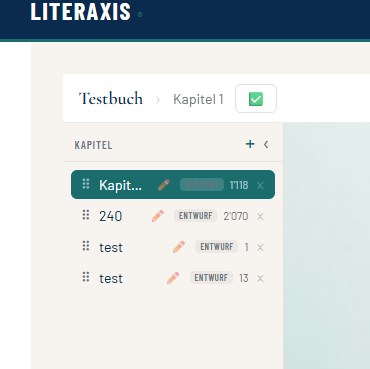
- New chapter: "+" button in the chapter list
- Status: clicking the status pill cycles through Draft → In progress → Revising → Done
- History: earlier versions (snapshots) of a chapter, in case you need to roll something back
6
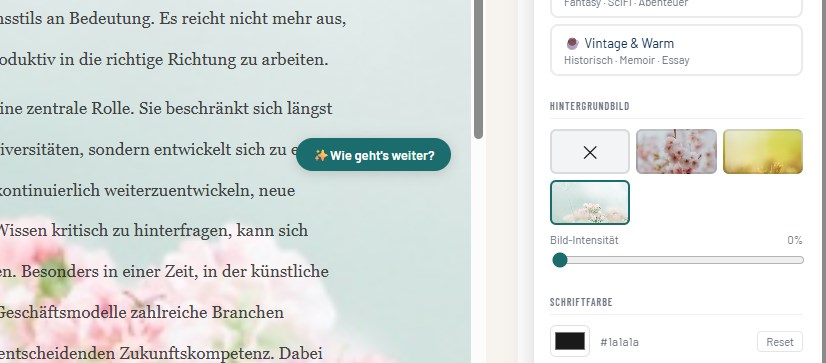
"What's next" — writer's block helper
Appears when needed at the bottom right of the editor — suggests three directions based on your text so far, whenever you get stuck.
7
Where your data lives: server vs. local
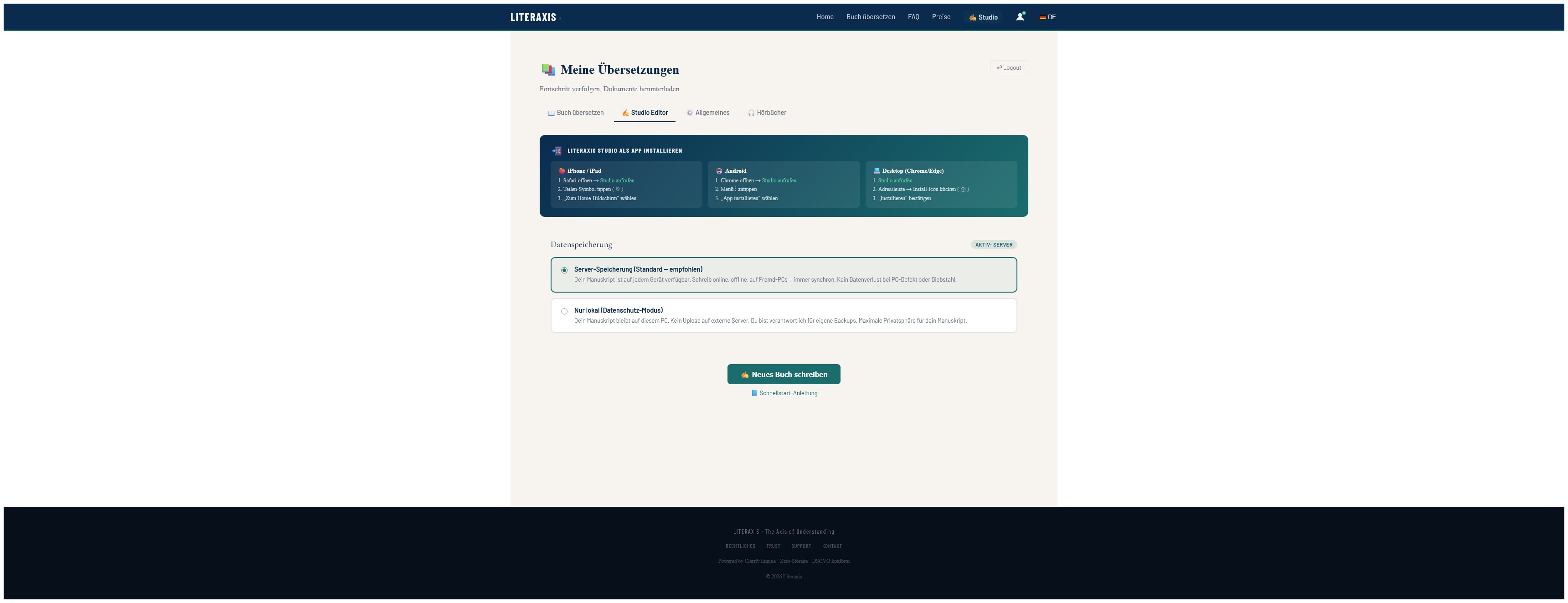
In the dashboard you choose whether your books are stored on the server (synced across devices) or only locally on this device (privacy mode, never leaves your device).
8
Losing internet while writing
If the connection drops, Literaxis Studio keeps saving locally automatically — nothing is lost. As soon as you're back online, it syncs.
9
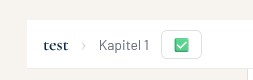
Offline sync icon
At the top of the editor, next to the chapter title:
- 💾 Never synced for offline use
- ✅ Synced and up to date
- 🔄 New books/chapters since your last sync — please sync again
10
Switching books
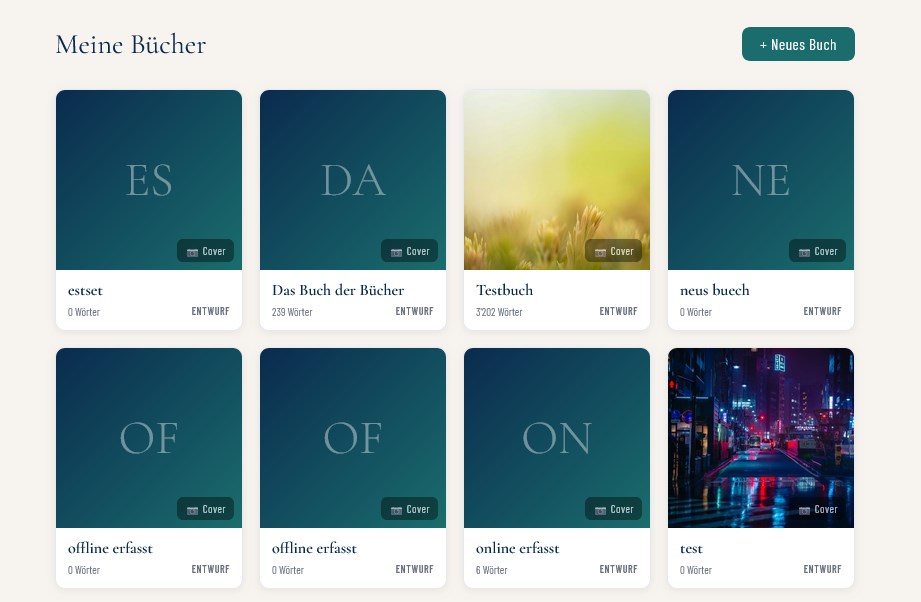
Clicking the book title top left opens the book list — no need to go back to the dashboard. You can also upload a cover there.
11
Saving
Autosave runs automatically every 30 seconds. To save immediately: press S or use the save button.
12
Customizing the look
Themes, preset background images, Zen mode, fullscreen mode — for your own writing atmosphere.
13
Shortcuts
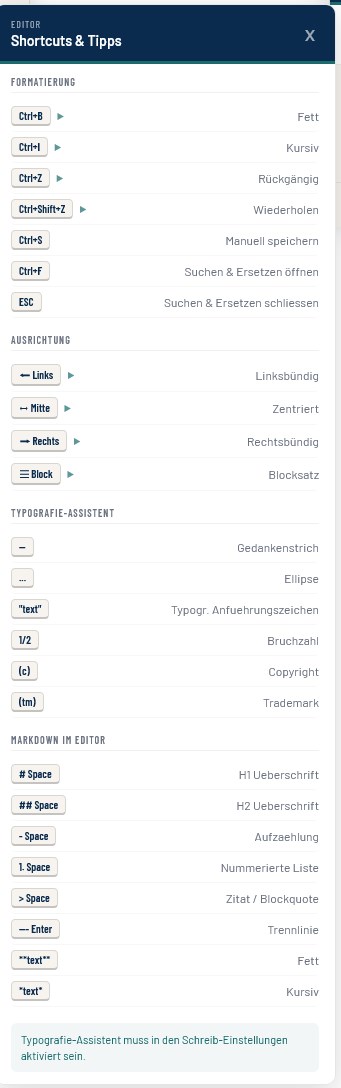
Full list via the Toolbox → Shortcuts & tips.
14
Zen mode
Hides all panels and menus — only your text stays visible, with your chosen background image. Turn it on via the fullscreen/Zen icon in the editor toolbar, and exit anytime with Esc.